It is common nowadays to receive a lot of alert emails from various companies. Most of them are unnecessary. But some of them are useful, like the alert emails from banks when our account is accessed or any transaction is processed.
I prefer to keep my inbox clutter free. Usually I use filters to either archive or delete emails. Filters are applied right before the emails arrive at the inbox. But I do want notifications for alert emails. I wanted the emails to reach my inbox so that I get notified, and then get cleared after some time. Google Apps Script was a perfect solution here.
Let’s see how to configure a script to automatically delete old alert emails from your inbox.
Okay, But what is Google App Script?
Google Apps Script is a cloud platform using which we can automate our workflow inside our Google Workspace.
Think of it as functions that we can run based on some event or at regular intervals.
Create new project
Visit the app script home page. And then create a new project.
Add function
In the editor, add below function.
function delete_alert_emails() {  const login_alert = '(from:email@bank.com subject:"Bank Account Accessed")';  const search_query = login_alert;
  const threads = GmailApp.search(search_query);  const count = threads.length;
  if (count === 0) {    Logger.log("No matching old emails found. Doing nothing.");    return;  }
  Logger.log("Starting deletion process...");  GmailApp.moveThreadsToTrash(threads);
  Logger.log(`Successfully moved ${count} threads to the Trash folder.`);}
The function defines criteria to use for searching the emails. If any email matches the criteria, they are moved to trash.
I have used sender’s email and subject for criteria. You can change the criteria based on your use case.
For example, this query combines multiple conditions with OR and also limits matches to emails older than four days.
  const login_alert = '(from:email@bank.com subject:"Bank Account Accessed")';  const transfer_alert = '(from:email@anotherbank.com subject:"Funds Transfered")';  const age_condition = 'older_than:4d';
  const search_query = `{ ${login_alert} OR ${transfer_alert} } ${age_condition}`;
Once added, save1 the script.
Run the function
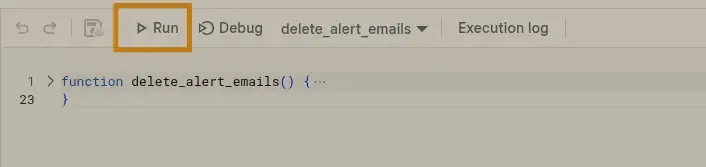
When executed for first time, it will ask for permissions.
When running, it will also show the execution logs.
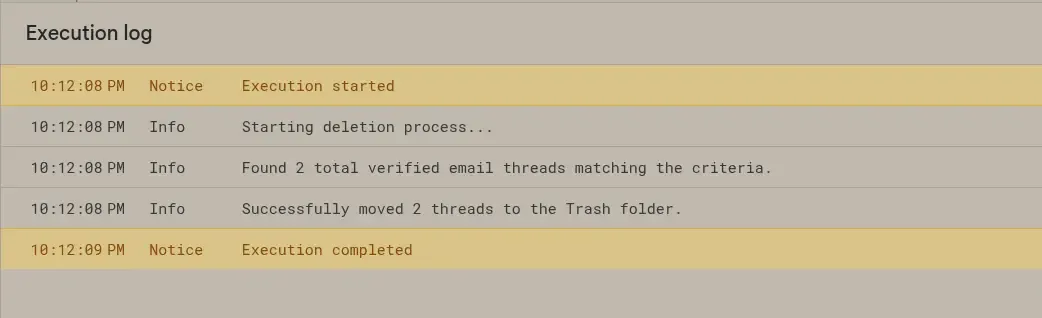
Test
It is good to test the function before deleting the actual emails. For this, you can comment out the line that deletes emails.
You can also print the subject of the emails that are matching the search query while testing using this example snippet.
// GmailApp.moveThreadsToTrash(threads);for (let i = 0; i < threads.length; i++) { console.log(threads[i].getFirstMessageSubject());}Once tested, we can proceed to add a trigger.
Trigger
With triggers, the function will be executed on a regular interval instead of us executing it manually.
Steps to add a trigger:
- From the sidebar, select trigger.
- Create a new trigger
-
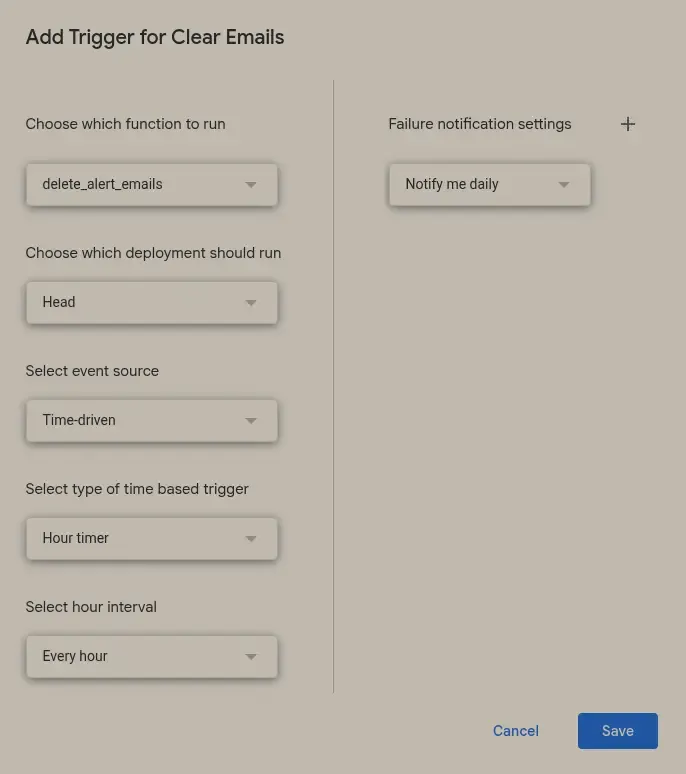
Add trigger dialog box
-
- In the popup
- Select the function to be triggered
- Select ‘time-driven’ for event source
- Select the frequency
- Select the interval as ‘every hour2’
Now, every hour the function will be executed.
That’s it
With this setup, I no longer have to manually clean up these alert emails. I still get notified when they arrive, and my inbox stays clutter free.
Footnotes